Canadian projector buying guide
How to Set Up a Projector With a Streaming Stick or Game Console
Plug the streaming stick or console into the projector’s HDMI input, give the stick its own power, select that input, then set sound and picture. If you want a stick and a console connected at the same time without swapping cables, choose a projector with two HDMI inputs, such as the BOSS S8A.
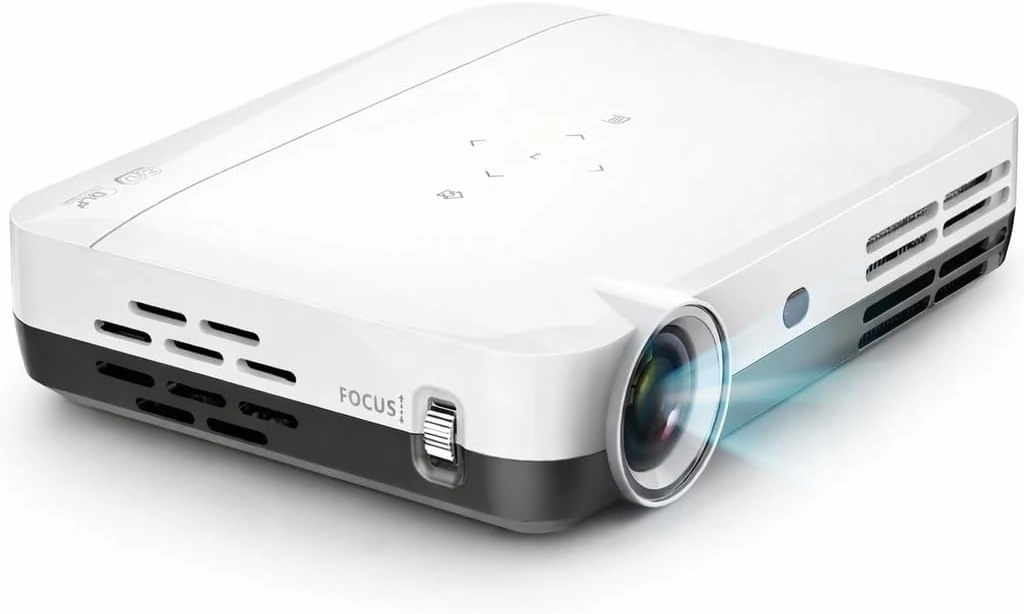
Why use a stick when the projector has apps?
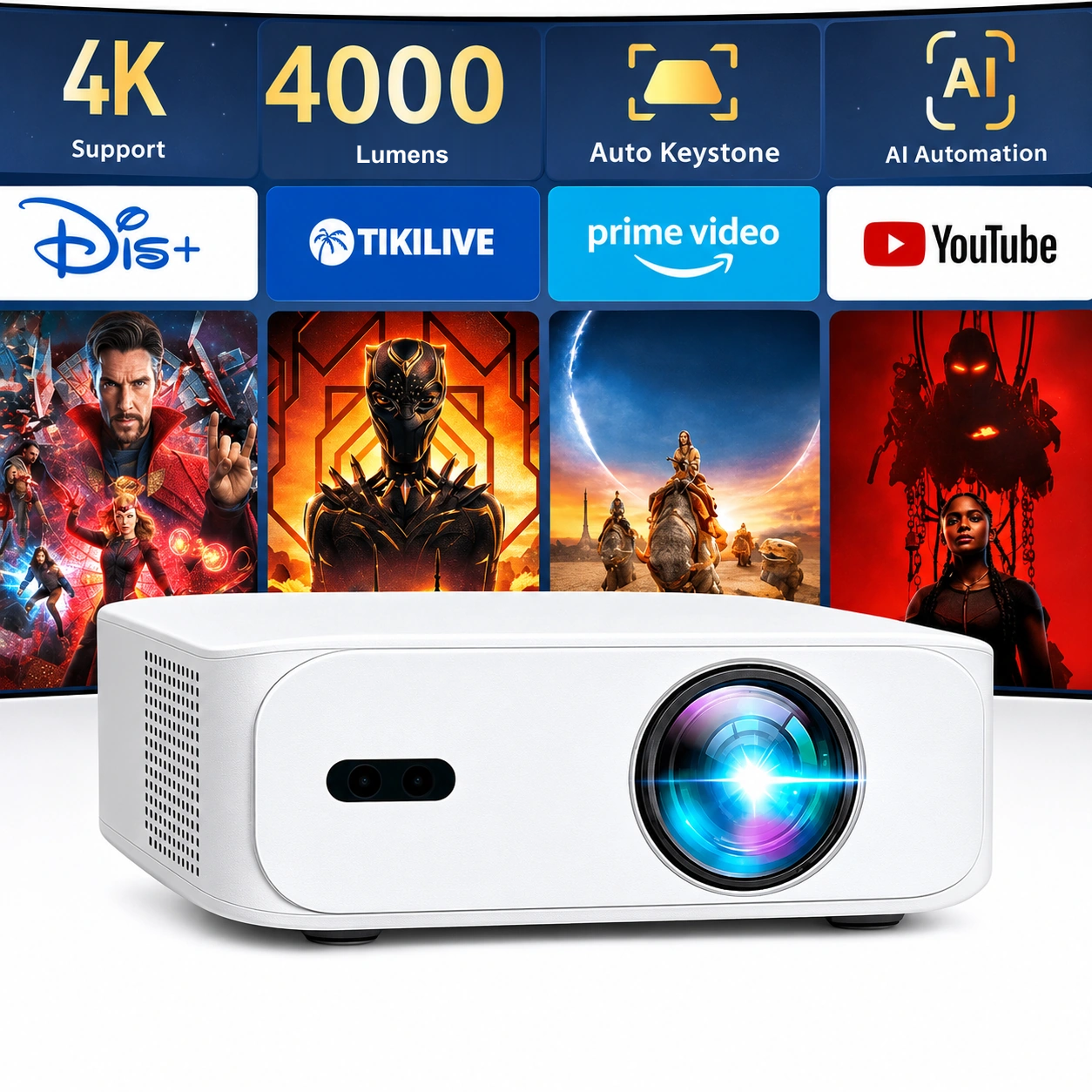
All four BOSS projectors have a smart system, and Netflix and YouTube can run on each of them once you connect to Wi-Fi and sign in. A streaming stick is still worth considering when a service you use is not available on the projector, when you prefer the stick’s remote and interface, or when you want the same home screen on your TV and projector. App availability is set by each provider and can change, so check your services first; Netflix, for example, publishes a list of supported devices.
Connecting a streaming stick
- Plug the stick into a free HDMI input on the projector.
- Power the stick from its own adapter and a wall socket. A USB port on a projector may not supply enough power for every stick, and an underpowered stick restarts at random.
- Turn the projector on and choose that HDMI input.
- Follow the stick’s setup, join your Wi-Fi and sign in to your services.
- Play a film with dialogue and check picture and sound from your usual seat.
If the Wi-Fi signal is weak where the projector sits, streaming stutters regardless of the stick. Move the router or an access point closer, or use a stick or adapter that supports a wired network connection.
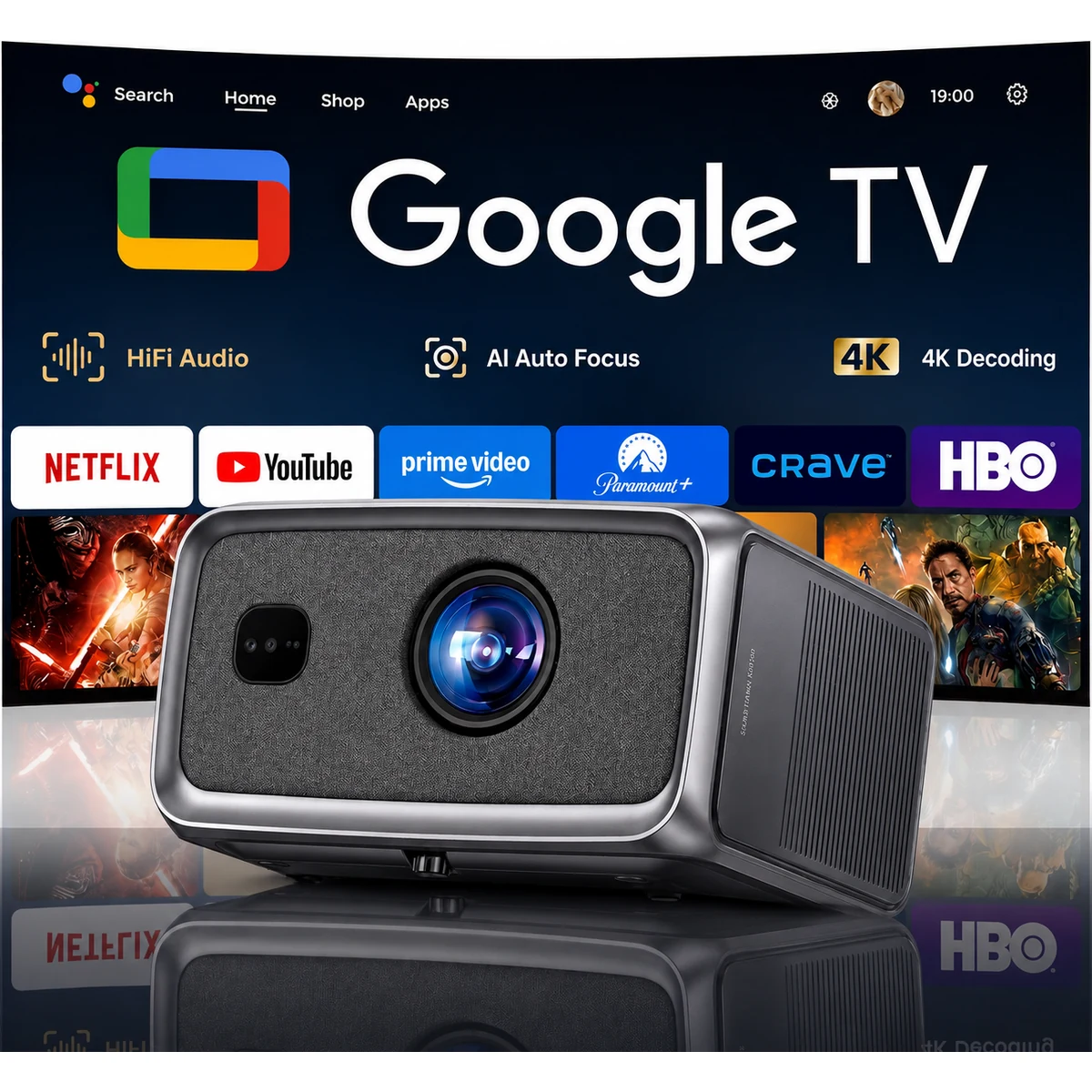
If you want streaming apps built in, see our guide to smart projectors with Google TV.
Connecting a games console
Use a good HDMI cable from the console to the projector and select that input. Turn on the projector’s game or low-latency mode if it offers one, and turn off picture processing you do not need. Competitive players should know that response time varies by source, mode and settings; we do not publish an input-lag figure for every model, so test the games you play.
A 4K console works with every model, but the picture you see depends on the projector’s output: the BOSS S7 outputs 4K UHD (3840 × 2160), while the BOSS S8A and the BOSS A5 display native 1080p and accept 4K input. Set the console’s output to match if the menu offers it.
Running a stick and a console together
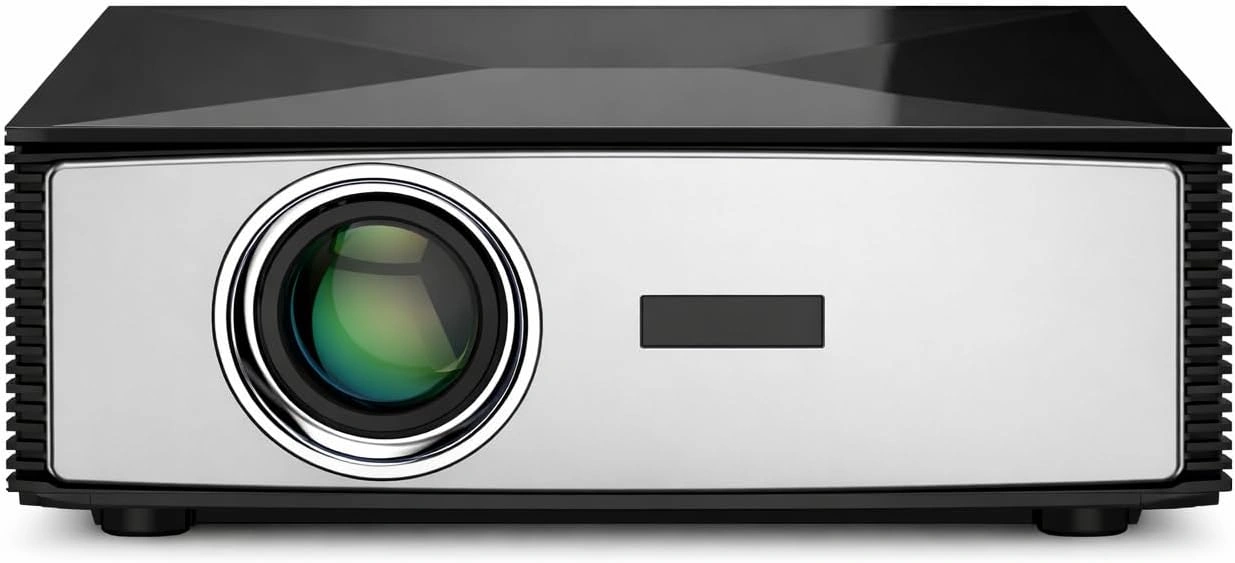
With one HDMI input you swap cables or add an HDMI switch. With two inputs you choose the source from the remote. The S8A has two HDMI inputs, which is the simplest arrangement for a living room with both. The A5 and S7 have one HDMI input each, so plan a switch or a single main source.
Cables, adapters and long runs
Use a certified HDMI cable that matches the signal: a High Speed cable is enough for 1080p, while 4K sources are more reliable with a Premium High Speed or Ultra High Speed cable. Keep the run as short as the room allows. For a ceiling-mounted projector far from the TV cabinet, plan the cable route before mounting, and test the longest cable with the actual source, because a picture that drops out every few minutes is usually a cable or power problem rather than a projector fault.
Using a laptop instead
A laptop connects the same way, through HDMI or a USB-C-to-HDMI adapter that supports video output. It is the most flexible source for presentations and local files, but for everyday streaming a stick or the projector’s own apps is simpler to live with.
Getting the sound right
The built-in speaker is fine for casual viewing. For films and games, pair a Bluetooth speaker or headphones, or use a wired connection when lip-sync matters most. Bluetooth can add a small delay; watch a speaking face to check. If you use a soundbar, check how it connects to the source you use most, because the route that works depends on the soundbar’s inputs; Sonos, for instance, documents the TV and source requirements for its home theatre speakers.
Picture settings worth five minutes
- Place the projector square to the screen and let autofocus and automatic keystone correction finish; on the S7, use the remote digital focus.
- Choose the picture mode intended for films or games rather than the brightest mode.
- Set the source to the resolution and aspect ratio the projector displays best.
- Darken the room: it improves contrast more than any setting.
Quick fixes
- No signal: check the selected input, reseat the HDMI cable and make sure the stick has its own power.
- Picture but no sound: check whether audio is going to a paired Bluetooth device.
- Black screen in one app: some services restrict playback paths; use the service’s supported device, or cast from a supported app as described in Google’s help page on casting from supported apps.
- Stuttering: test the Wi-Fi speed where the projector stands.
Our recommendation
For a living room with a streaming stick and a console, we recommend the BOSS S8A: Google TV built in, two HDMI inputs, autofocus and compatible 4K input. If 4K UHD output matters more than a second input, choose the BOSS S7. For a single stick in a bedroom, the BOSS A5 is enough. See our guide to smart projectors with Google TV.
Services and sports in Canada
Canadian streaming and sports services each publish their own list of supported devices, and that list can differ from the US one. Check the service’s Canadian help page for the device you plan to use before buying a stick. For hockey nights, test a live game rather than a replay, because live streams are the first to show a weak Wi-Fi signal.
Prices on CanadaProjector.com are in Canadian dollars. Eligible direct orders ship free by expedited service: next business day in the eligible Ontario service area and normally 2–3 business days elsewhere after dispatch.
Current models and prices
Explore the current models
Review the key specifications and current prices. Open a model for the full details.