Canadian projector buying guide
Can a Projector Connect to a Phone? Here’s What You Need to Know
A projector can show content from a phone when the phone, connection method and projector input are compatible. The two practical video routes are a supported HDMI adapter or a compatible wireless casting receiver. Bluetooth pairing is not the screen-mirroring method described in this guide; use it only for audio or peripherals that the exact model supports.

Start with the phone and the content
Write down your phone model, its charging-port type and the name of the app or file you want to show. A presentation, a downloaded video and a subscription streaming app can have different connection requirements. Test the actual content before a meeting or movie night.
Choose between a cable and wireless casting
A cable is useful when you want to avoid relying on the room’s wireless network. Casting is convenient when the phone, receiver and app support the same system. A projector having Wi-Fi does not establish compatibility with every phone or streaming service.
1. Connect through the projector’s HDMI input
Connect the correct video adapter to the phone, connect an HDMI cable between the adapter and projector, then select that HDMI input. Provide power to the adapter if its instructions require it. A charging cable plugged into a projector’s USB port does not by itself establish a phone-video connection.
For iPhone
The adapter depends on the iPhone model and port. Apple documents Lightning and USB-C display adapters for supported models; check the exact combination before buying. Follow Apple’s wired-display instructions for the current model-specific steps.
For Android
A USB-C connector alone does not confirm video output. Check the phone manufacturer’s display-output specification and the adapter’s requirements. For example, Google’s Pixel display guide identifies the supported Pixel generations and connection steps; that guidance should not be generalized to every Android phone.
2. Use a compatible casting receiver
Check which casting system the projector or an attached HDMI receiver supports. Then confirm that the phone and app support it. For Google Cast-enabled apps, Google instructs users to put the phone and compatible receiver on the same Wi-Fi network and select the receiver from the app’s Cast control. See Google’s casting instructions.
What Bluetooth does here
Bluetooth availability should be checked separately from video input. It may support compatible speakers, headphones or controls, depending on the projector. Pairing a phone by Bluetooth does not establish HDMI video or Wi-Fi screen mirroring. As a concrete manufacturer example, Epson describes Bluetooth audio output from a connected video source; this does not establish the same feature on every BOSS Projectors model.
3. Check app and protected-content support
Streaming apps have their own casting and protected-content requirements, separate from your phone’s home-screen mirroring. Follow the streaming provider’s supported-device and casting instructions. If the app does not support the chosen method, use a compatible certified HDMI streaming device or another method supported by that provider.
Use only the control or casting app identified in the exact device’s documentation. This guide does not require a separate BOSS Projectors phone-control app.
4. Troubleshoot one part of the connection at a time
- Confirm the projector is on the correct input.
- Check that the phone supports the chosen adapter or casting system.
- For a wired connection, check cable seating and any adapter power requirement.
- For casting, follow the receiver’s network and permission instructions.
- Try a local photo or presentation, then the intended video app. A failure limited to one app can indicate an app-specific restriction.
- Record the phone model, projector model, adapter and error message before contacting support.
5. Get help with your exact setup
Our Toronto-based team can help you compare the listed inputs and setup requirements of the current BOSS Projectors models. Send the phone model, intended app, room dimensions and desired screen size through the advice form. Compatibility should be confirmed for your combination, rather than inferred from a Wi-Fi or Bluetooth badge.
6. Compare the current projector models
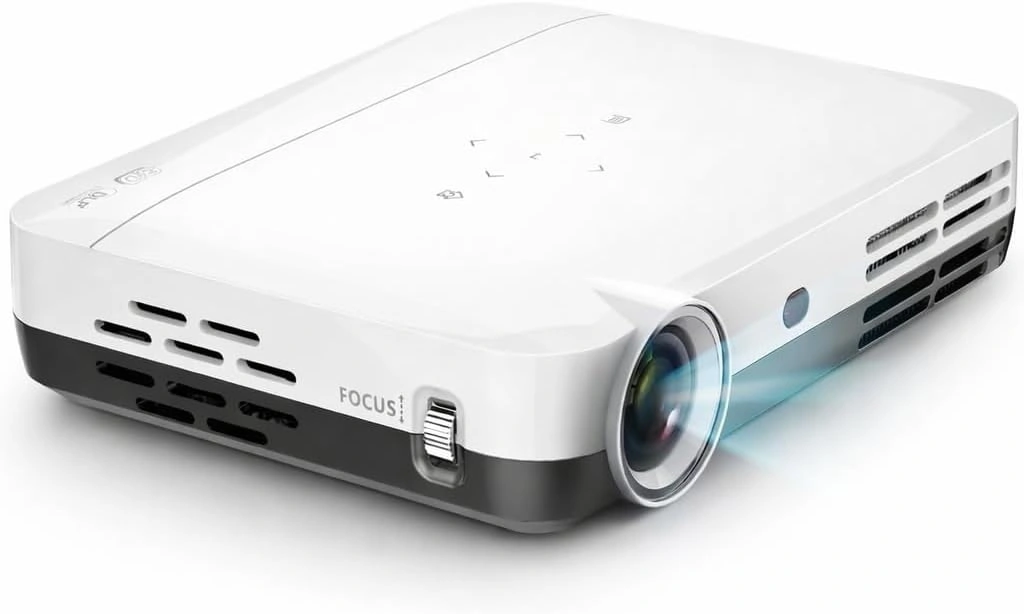
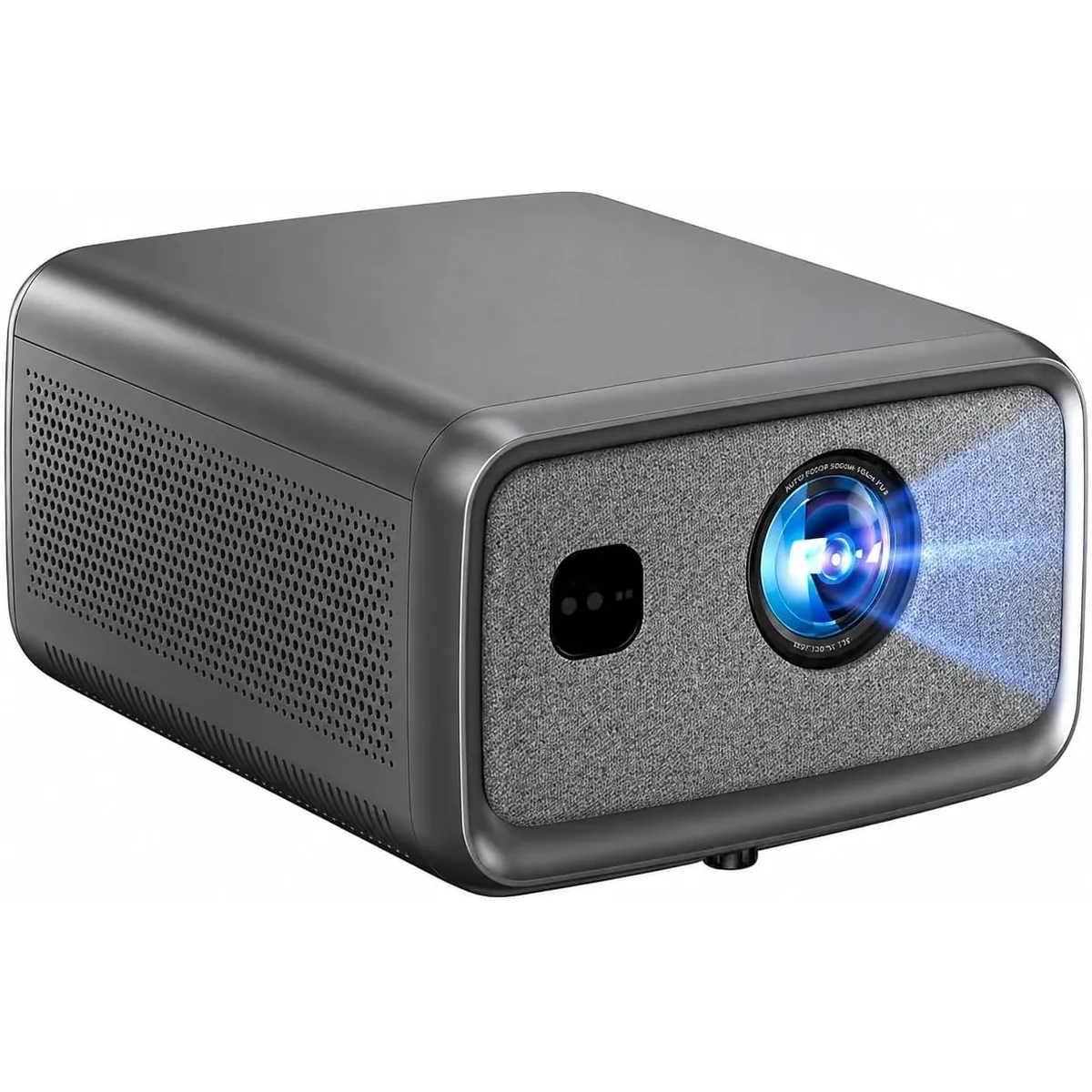
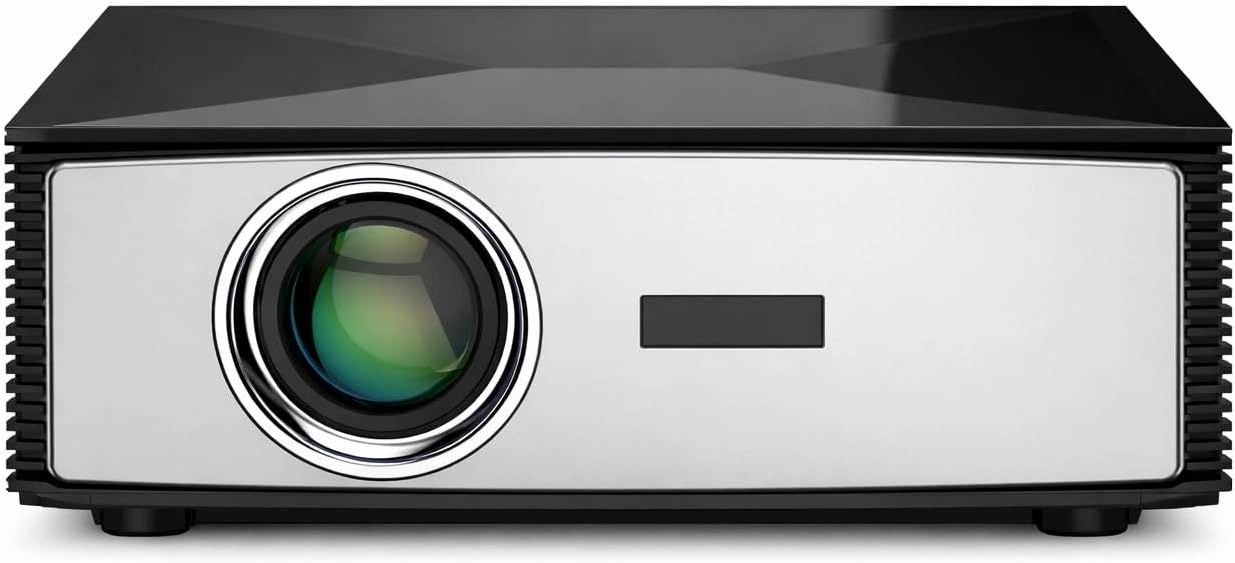
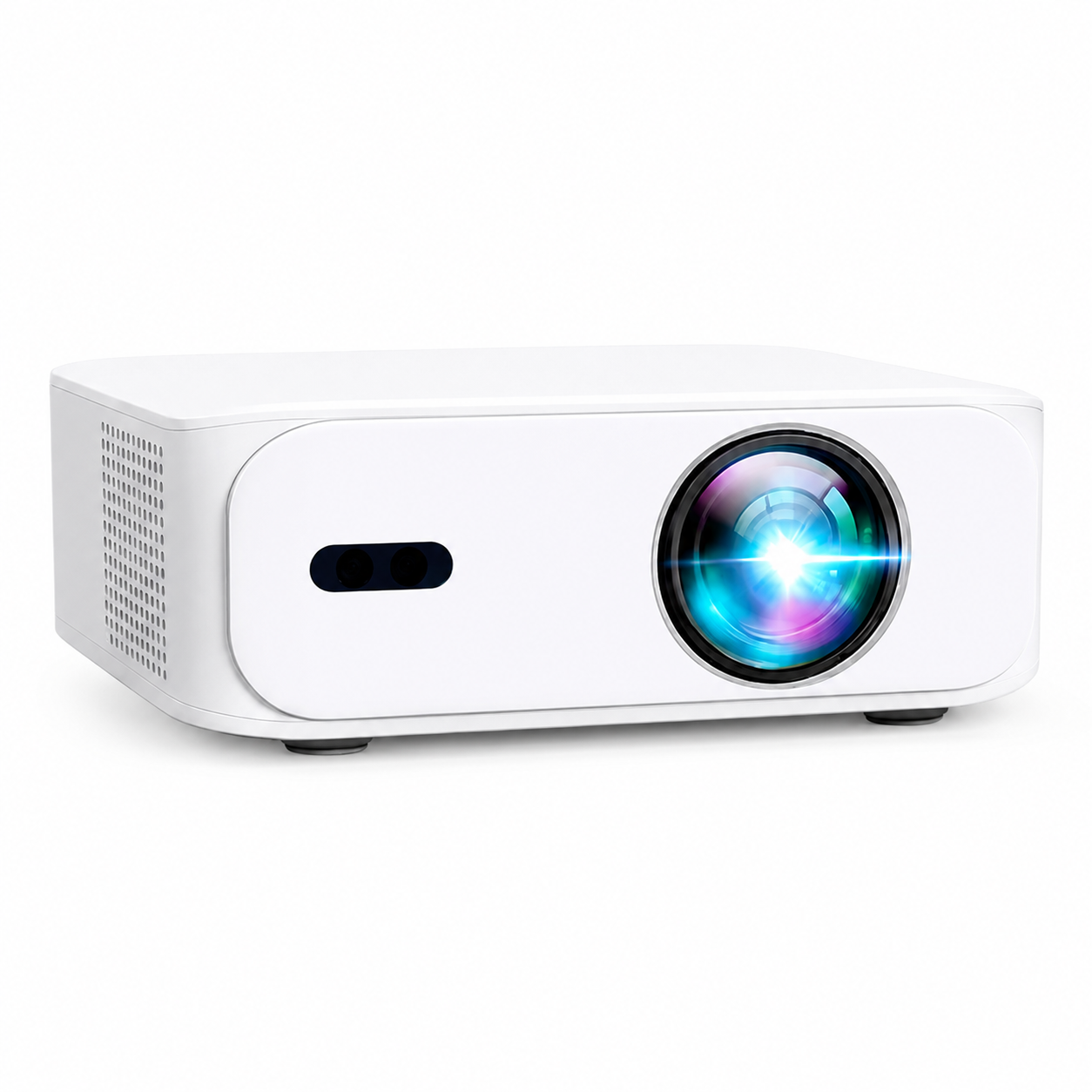
The current range includes the BOSS S7, S8A, S6A and A5. Use the model comparison and individual product pages to check output resolution, inputs and adjustment controls. The live product cards below show current direct-store prices and availability; those details can change.
7. Match the method to the job
For presentations, test small text from your actual slides. For films, test the intended streaming app and audio route. For games, check responsiveness with the actual connection before relying on wireless projection. Keep a compatible cable or alternative source available when the event matters.
8. Set up the picture and sound
Place the projector securely and square to the screen, with the ventilation clearance required by its manual. Adjust focus after choosing the screen size and projector distance. Keep direct light off the image. Test whether sound is coming from the phone, projector or external audio device before the audience arrives.
9. Check the offer before ordering
Confirm the current product description, included accessories, adapter needs and published shipping policy and return and warranty terms. Retailer bundles and terms may differ from direct orders, so check the particular offer you intend to buy.
Frequently asked questions
Can I connect a phone without Wi-Fi?
Yes, when the phone supports a compatible wired display adapter and the projector has the matching input. USB-C port shape alone is not enough to confirm video support.
Do I need a special phone app?
That depends on the connection. Follow the phone, receiver and streaming provider’s instructions. Do not install an app solely because an old article claims it controls every projector.
Can Bluetooth mirror my phone’s screen?
Use a supported video adapter or compatible casting system for the picture. Treat Bluetooth as a separate audio or peripheral feature and check the exact device’s supported functions.
Why does a photo display but a streaming video stay black?
The app may restrict the connection method or require a supported playback device. Check the provider’s instructions and test a supported casting or HDMI streaming-device route.
Which BOSS Projectors model should I choose for a phone?
Choose after confirming the phone’s video method, your room, screen size and source requirements. Compare the four current models and ask our team about your exact combination before ordering adapters.
Before your first viewing
Test the complete path from phone to picture and sound. Confirm the actual app works, focus the image and keep the connection instructions available. These checks are more useful than assuming that a wireless logo promises universal compatibility.
Current models and prices
Explore the current models
Review the key specifications and current prices. Open a model for the full details.